🚀 Quickstart: Your First Implementation
Note: These steps are best taken before importing the asset to ensure a clean integration. If you have already imported the package, please close and reopen your Unity project to clear any potential namespace or
TextMeshProdependency errors.
Prerequisites
- Visual Scripting: Installed via the Unity Package Manager.
- TextMesh Pro: Installed via the Unity Package Manager.
Integration Steps
1. Configure TMP Assets:
Navigate to Window > TextMeshPro > Import TMP Essential Resources to ensure the core text rendering components are ready for your project.
2. Initialize Visual Scripting:
Navigate to Project Settings > Visual Scripting. If the Initialize button is visible, click it to generate the necessary graph reflection metadata.
3. Import Asset:
Import the Canley Haptics VS Module into your Assets directory.
4. Regenerate Units:
Once the import is complete, return to Project Settings > Visual Scripting and click the Regenerate Units button.
Once regeneration finishes, the Canley Haptics nodes will be available in your Fuzzy Finder.
The Basic Haptics nodes and the Pulse Engine can be found under the Canley > Haptics category.
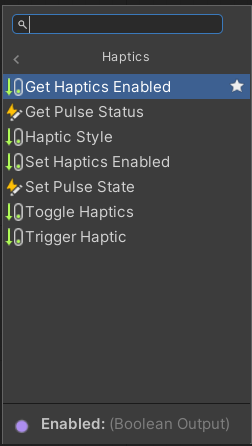
Haptics Events can be found under the Events > Canley > Haptics category.
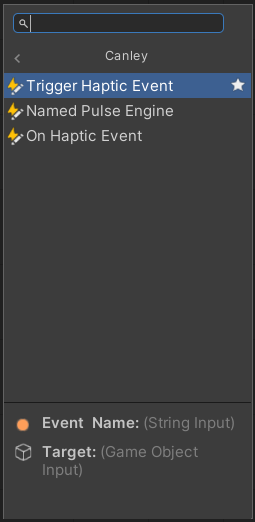
Pro-Tip for Commercial Builds
If you encounter any issues with node discovery after regeneration, ensure your project is saved and perform a Clean Rebuild of your Visual Scripting metadata. This ensures the Canley namespace is correctly registered in your project’s AOT (Ahead-Of-Time) compilation and runtime reflection tables—crucial for stable iOS performance.